> ## Documentation Index
> Fetch the complete documentation index at: https://code.claude.com/docs/llms.txt
> Use this file to discover all available pages before exploring further.
# Manage multiple agents with agent view
> Dispatch and manage many Claude Code sessions from one screen. Agent view shows what every session is doing and which ones need your input.
Agent view, opened with `claude agents`, is one screen for all your background sessions: what's running, what needs your input, and what's done. Dispatch new sessions, watch their state at a glance instead of scrolling through transcripts, and step in only when one needs you. Each background session is a full Claude Code conversation that keeps running without a terminal attached, so you can open it, reply, and leave whenever you want.
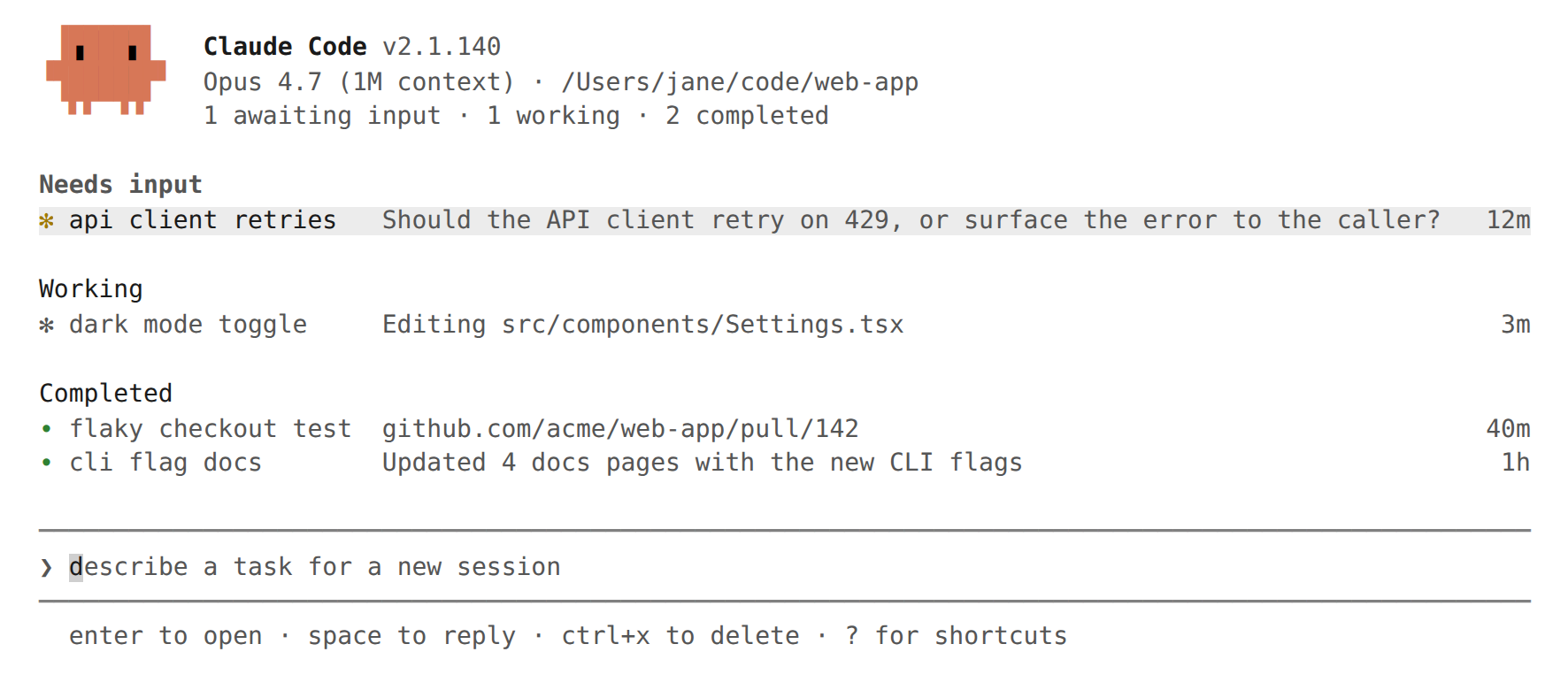
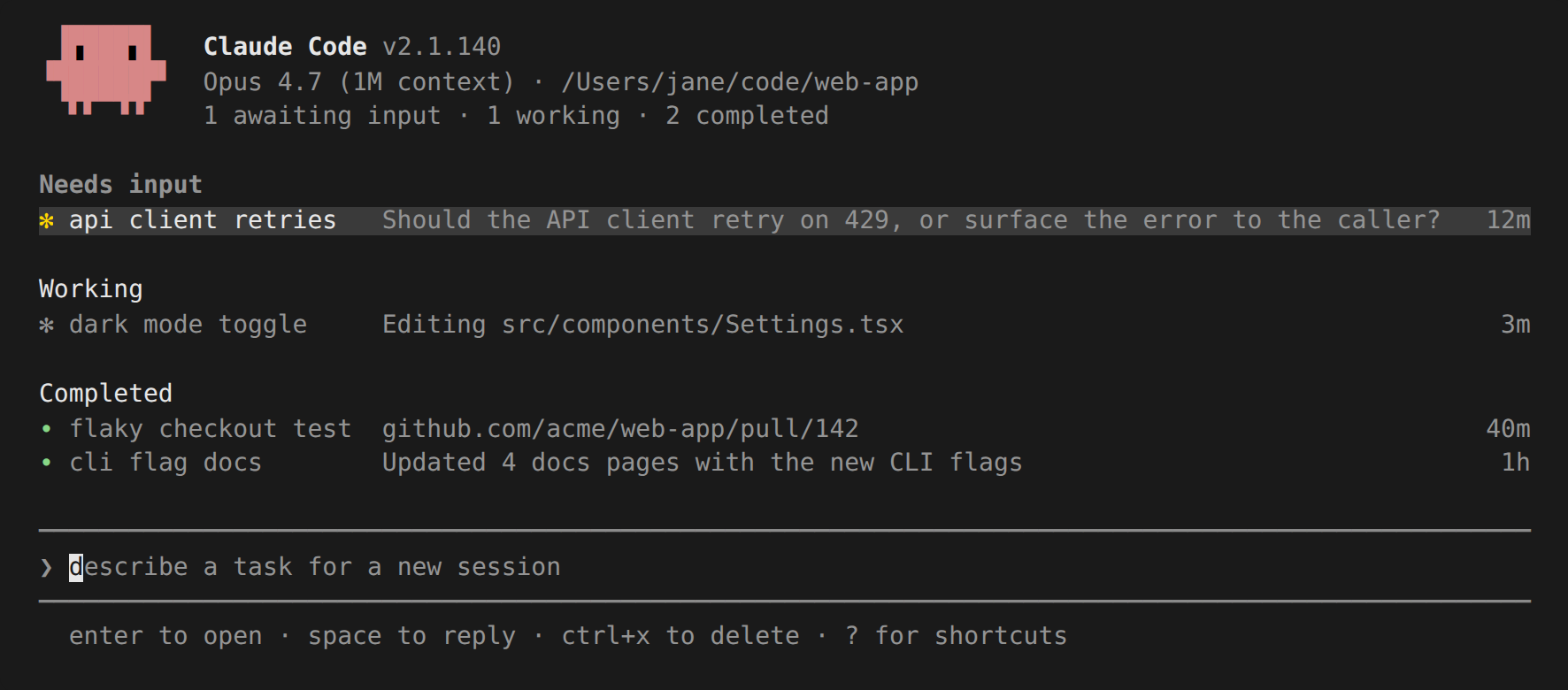 Use agent view when you have several independent tasks Claude can work on without you watching every step. Dispatch a bug fix, a pull request review, and a flaky-test investigation as three rows, keep working in another window, and check back when a row shows it needs you or has a result.
When you want to work more directly in any agent's session, attach to the row to enter the full conversation.
To compare agent view with subagents, agent teams, and worktrees, see [Run agents in parallel](/en/agents).
Agent view is in research preview and requires Claude Code v2.1.139 or later. Check your version with `claude --version`. The interface and keyboard shortcuts may change as the feature evolves.
This page covers:
* [Quick start](#quick-start): give Claude a task to work on in the background, check on it, and step in when needed
* [Monitor sessions with agent view](#monitor-sessions-with-agent-view), including state icons, peeking and replying, attaching, organizing, and keyboard shortcuts
* [Dispatch new agents](#dispatch-new-agents) from agent view, from inside a session, or from your shell
* [Manage sessions from the shell](#manage-sessions-from-the-shell)
* [How background sessions are hosted](#how-background-sessions-are-hosted) by the supervisor process
## Quick start
This walkthrough covers the core agent view loop: dispatch a task, watch its row update as Claude works, peek to check on it and reply, and attach for the full conversation. The session you dispatch keeps running after you close agent view, so you can leave and come back to it.
From your shell, run:
```bash theme={null}
claude agents
```
Agent view opens with an input at the bottom and a table that fills in as sessions start. Press `Esc` at any time to return to your shell. Your sessions keep running while you're away and reappear the next time you open agent view.
Type a prompt describing a task and press `Enter`. A new background session starts on that task and appears as a row showing whether it's working, waiting on you, or done. The new session uses the model shown in the agent view header and the same [permission mode](#permission-mode-model-and-effort) you'd get running `claude` in that directory.
Every prompt you enter here starts its own new session. Typing another prompt and pressing `Enter` launches a second session alongside the first rather than sending a follow-up to it. You can run several in parallel this way.
Each session uses your subscription quota independently, so see [Limitations](#limitations) before dispatching many at once.
Select a row with the arrow keys and press `Space` to open the peek panel. It shows the session's most recent output, or the question it's waiting on, rather than the full transcript. Type a reply and press `Enter` to send it without leaving agent view.
Press `Enter` or `→` on a row to attach when you want the full conversation. The session takes over the terminal exactly as if you had run `claude`. Press `←` on an empty prompt to detach and return to the table.
To move a session you already have open into agent view, run `/bg` inside it, or press `←` on an empty prompt to background it and open agent view in one step. The session keeps running and appears as a row alongside the ones you dispatched.
You can use `claude agents` as your primary entry point instead of `claude`: dispatch every task from agent view, attach when you want the full conversation, and press `←` to return to the table.
## Monitor sessions with agent view
Run `claude agents` to open agent view. It takes over the full terminal and lists every session grouped by state, with pinned sessions and the ones that need you at the top. Each row shows the session's name, current activity, and how long ago it last changed.
By default the list shows every background session you've started, across all your projects. A session working in one repository and another in a different worktree both appear here, regardless of which directory you opened agent view from. To narrow the list to one project, pass `--cwd` (requires Claude Code v2.1.141 or later):
```bash theme={null}
claude agents --cwd ~/projects/my-app
```
This shows only sessions started under that directory. A session that has [moved into a worktree](#how-file-edits-are-isolated) under `~/projects/my-app/.claude/worktrees/` still counts as belonging to `~/projects/my-app`.
Interactive sessions you have open in other terminals don't appear until you [background them](#from-inside-a-session). [Subagents](/en/sub-agents) and [teammates](/en/agent-teams) a session spawns aren't listed as separate rows.
```text theme={null}
Pinned
✽ clawd walk cycle Write assets/sprites/clawd-walk.png 3m
Ready for review
∙ jump physics github.com/example/game/pull/2048 ● 2h
Needs input
✻ power-up design needs input: double jump or wall climb? 1m
Working
✽ collision detection Edit src/physics/CollisionSystem.ts 2m
✢ playtest level 3 run 12 · all checkpoints cleared in 4m
Completed
✻ title screen result: menu, options, and credits done 9m
∙ sound effects result: 14 SFX exported to assets/audio 4h
… 6 more
```
### Read session state
Each row starts with an icon whose color and animation show the session's state:
| State | Icon shows as | What it means |
| :---------- | :------------ | :----------------------------------------------------------------------- |
| Working | Animated | Claude is actively running tools or generating a response |
| Needs input | Yellow | Claude is waiting on a specific question or permission decision from you |
| Idle | Dimmed | The session has nothing to do and is ready for your next prompt |
| Completed | Green | The task finished successfully |
| Failed | Red | The task ended with an error |
| Stopped | Grey | The session was stopped with `Ctrl+X` or `claude stop` |
Separately, the icon's shape shows whether the underlying process is running:
| Shape | What it means |
| :------------------ | :---------------------------------------------------------------------------------------------------------------- |
| `✻` or animated `✽` | The session process is alive and replies immediately |
| `∙` | The process has exited. You can still peek, reply, or attach, and Claude restarts from where it left off |
| `✢` | A [`/loop`](/en/scheduled-tasks) session sleeping between iterations. The row shows its run count and a countdown |
The `●` that can appear at the right edge of a row is the [pull request status](#pull-request-status) indicator, not part of the state icon. A number before it is the count of pull requests the session has opened.
The terminal tab title shows the awaiting-input count while agent view is open: `2 awaiting input · claude agents` when sessions need input, or `claude agents` when none do.
Background sessions don't need any terminal open to keep working. A separate [supervisor process](#the-supervisor-process) runs them, so you can close agent view, close your shell, or start a new interactive session and your dispatched work keeps going.
Session state persists on disk through auto-updates and supervisor restarts. Sessions are also preserved when your machine sleeps. Their processes resume on wake and the supervisor reconnects to them instead of treating the time gap as idle. Shutting down still stops running sessions; see [Sessions show as failed after shutdown](#sessions-show-as-failed-after-shutdown) for how to recover them.
### Row summaries
The one-line summary in each row is generated by a [Haiku-class model](/en/model-config) so the row can tell you what the session is doing, what it needs, or what it produced without opening the transcript. While a session is actively working, the summary refreshes at most once every 15 seconds, plus once when each turn ends.
Each refresh is one short Haiku-class request through your normal provider, billed and handled under the same [data usage terms](/en/data-usage) as the session itself.
### Pull request status
When a session opens a pull request, a status dot appears at the right edge of the row, linked to the pull request in terminals that support hyperlinks. When the session has opened more than one pull request, the count appears before the dot and the color reflects whichever one most needs attention.
| Dot color | Pull request status |
| :-------- | :-------------------------------------------- |
| Yellow | Waiting on checks or review, or checks failed |
| Green | Checks passed and no review is blocking |
| Purple | Merged |
| Grey | Draft or closed |
For most tasks this row is where you pick up the result: review and merge the pull request when the dot turns green.
### Peek and reply
Press `Space` on a selected row to open the peek panel. It shows what the session needs from you, its most recent output, and any pull requests it opened. Most of the time this is enough, and you never need to open the full transcript.
Type a reply in the peek panel and press `Enter` to send it to that session. When the session is asking a multiple-choice question, the peek panel shows the options and you can press a number key to pick one. For other blocked sessions, press `Tab` to fill the input with a suggested reply you can edit before sending. Prefix a reply with `!` to send a Bash command instead.
Use `↑` and `↓` to peek at adjacent sessions without closing the panel, or `→` to attach.
### Attach to a session
Press `Enter` or `→` on a selected row to attach. Agent view is replaced by the full interactive session, exactly as if you had run `claude` in that directory. When you attach, Claude posts a short recap of what happened while you were away.
While attached, the session behaves like any other Claude Code session: every [command](/en/commands), keyboard shortcut, and feature works.
Press `←` on an empty prompt to detach and return to agent view. If a dialog has focus and isn't responding to `←`, press `Ctrl+Z` to detach immediately.
`Ctrl+C` keeps its standard interrupt behavior while attached: it cancels a running response or `!` shell command rather than detaching. Pressing `Ctrl+C` twice on an empty prompt detaches, the same as in any session.
Detaching never stops a background session: `←`, `Ctrl+Z`, `/exit`, and double `Ctrl+C` or double `Ctrl+D` all leave it running. To end a session from inside it, run `/stop`.
After you've dispatched or backgrounded a session, pressing `←` on an empty prompt works from any Claude Code session, not only ones you attached to from agent view. It backgrounds the current session and opens agent view with that row selected, so you can switch sessions without leaving the terminal. The row is created even from a fresh session with no conversation history, so `→` returns to it. When that row is the only one, agent view shows an onboarding hint below it. You can turn this shortcut off in `/config` (the `leftArrowOpensAgents` setting).
### Organize the list
Agent view groups sessions so the ones that need input are at the top, with `Ready for review` and `Needs input` above `Working` and `Completed`. These group names don't map one-to-one to the [states](#read-session-state) above: a session moves to `Ready for review` when it has an open pull request, and `Completed` collects finished, failed, and stopped sessions together. Press `Ctrl+S` to group by directory instead. Your choice persists across runs.
Within a group:
* Press `Ctrl+T` to pin a session to the top and [keep its process running](#the-supervisor-process) while idle
* Press `Shift+↑` or `Shift+↓` to reorder sessions
* Press `Ctrl+R` to rename a session
* Press `Enter` on a group header to collapse it
To remove a session from the list, press `Ctrl+X` to stop it and `Ctrl+X` again within two seconds to delete it. Pressing `Ctrl+X` on a group header deletes every session in that group after confirmation.
Deleting removes the session from agent view. If Claude [created a worktree](#how-file-edits-are-isolated) for the session, deleting removes that worktree too, including any uncommitted changes in it, so push or commit work you want to keep first. A worktree you created yourself and started the session inside is left in place. The conversation transcript stays on your local machine and remains available through `claude --resume`.
Older completed sessions fold into a `… N more` row to keep the list short. Failures and sessions with an open pull request always stay visible.
### Filter sessions
Type in the dispatch input to filter instead of dispatching:
| Filter | Shows |
| :---------------------- | :------------------------------------------------------------------------------------------------------- |
| `a:` | Sessions running the named agent |
| `s:` | Sessions in the given state, such as `s:working`. Also accepts `s:blocked` for everything waiting on you |
| `#` or a PR URL | The session working on that pull request |
### Keyboard shortcuts
Press `?` in agent view to see every shortcut in context. The table below summarizes them.
| Shortcut | Action |
| :-------------------- | :---------------------------------------------------------------------------------- |
| `↑` / `↓` | Move between rows |
| `Enter` | Attach to the selected session, or dispatch if there's text in the input |
| `Space` | Open or close the peek panel for the selected session |
| `Shift+Enter` | Dispatch and attach immediately |
| `→` | Attach to the selected session |
| `Alt+1`..`Alt+9` | Attach to session 1–9 in the focused session's directory |
| `Tab` | On an empty input, browse all subagents. Otherwise apply the highlighted suggestion |
| `Ctrl+S` | Switch grouping between state and directory |
| `Ctrl+T` | Pin or unpin the selected session |
| `Ctrl+R` | Rename the selected session |
| `Ctrl+G` | Open the dispatch prompt in your `$VISUAL` or `$EDITOR` |
| `Ctrl+X` | Stop the session; press again within two seconds to delete it |
| `Shift+↑` / `Shift+↓` | Reorder the selected session |
| `Esc` | Close the peek panel, clear the input, or exit |
| `Ctrl+C` | Clear the input; press twice to exit |
| `?` | Show all shortcuts |
## Dispatch new agents
You can dispatch new background sessions from agent view, send an existing interactive session to the background, or start one directly from the shell.
### From agent view
Type a prompt in the input at the bottom of agent view and press `Enter` to start a new background session. The session is named automatically from the prompt; rename it later with `Ctrl+R`.
Paste an image into the prompt to include a screenshot or diagram with the task.
Prefix or mention parts of the prompt to control how the session starts:
| Input | Effect |
| :-------------------------------- | :------------------------------------------------------------------------------------------------------------------------------------------------------------- |
| ` ` | If the first word matches a custom [subagent](/en/sub-agents) name, that subagent runs as the session's main agent with the configuration from its frontmatter |
| `@` | Mention a custom subagent anywhere in the prompt to run it as the main agent |
| `@` | Mention a repository under the directory you opened agent view from to run the session there |
| `/` | Suggest [skills](/en/skills) to dispatch as the prompt |
| `#` or a pull request URL | If a session is already working on that PR, select it instead of dispatching |
| `Shift+Enter` | Dispatch and immediately attach to the new session |
Packaging a recurring task as a [skill](/en/skills) lets you start the same workflow from agent view repeatedly without retyping the prompt.
When the same `@name` matches both a subagent and a sibling repository, the subagent takes precedence. The bare first-word match also applies, so a prompt that happens to begin with one of your subagent names dispatches that subagent rather than treating the word as plain text. Use the `@` form when you want to be explicit, or start the prompt with a different word to avoid the match.
#### Dispatch to a specific directory
A new session runs in the directory you opened agent view from. To target a different directory:
* Open `claude agents` in that directory.
* Open `claude agents` in a parent directory that holds several repositories and mention one with `@` in the prompt to run the session there.
* From the shell, `cd` into the directory and run `claude --bg ""`.
When agent view is grouped by directory, the highlighted row's directory becomes the dispatch target, so you can scroll to a group and dispatch into it without retyping the path.
### From inside a session
Run `/background` or its alias `/bg` to move the current conversation into a background session. Pass a prompt such as `/bg run the test suite and fix any failures` to give one more instruction first.
Backgrounding from an interactive session starts a fresh process that resumes from the saved conversation, so running subagents, [monitors](/en/tools-reference#monitor-tool), and background commands do not transfer to it. Claude asks you to confirm before backgrounding when any are running. Once in the background, the session can start new subagents, monitors, and background commands, and those keep running across later detach and reattach.
Configuration flags from the original launch carry through to the backgrounded session, so its MCP servers, settings, and fallback model remain in effect:
* `--mcp-config` and `--strict-mcp-config`
* `--settings`
* `--add-dir`
* `--plugin-dir`
* `--fallback-model`
* `--allow-dangerously-skip-permissions`
Directories you added during the session with [`/add-dir`](/en/permissions#additional-directories-grant-file-access-not-configuration) also carry through.
Carrying `--allow-dangerously-skip-permissions` through keeps `bypassPermissions` reachable in the backgrounded session, but it does not grant anything new. The mode still requires the same one-time interactive acceptance described in [Permission mode, model, and effort](#permission-mode-model-and-effort) before any session can use it.
### From your shell
Pass `--bg` to start a session that goes straight to the background:
```bash theme={null}
claude --bg "investigate the flaky SettingsChangeDetector test"
```
To run a specific subagent as the session's main agent, combine `--bg` with `--agent`:
```bash theme={null}
claude --agent code-reviewer --bg "address review comments on PR 1234"
```
Pass `--name` to set the session's display name in agent view instead of the auto-generated one:
```bash theme={null}
claude --bg --name "flaky-test-fix" "investigate the flaky SettingsChangeDetector test"
```
After backgrounding, Claude prints the session's short ID and the commands for managing it. When you pass `--name`, the name appears after the short ID:
```text theme={null}
backgrounded · 7c5dcf5d · flaky-test-fix
claude agents list sessions
claude attach 7c5dcf5d open in this terminal
claude logs 7c5dcf5d show recent output
claude stop 7c5dcf5d stop this session
```
### How file edits are isolated
Every background session, whether started from agent view, `/bg`, or `claude --bg`, starts in your working directory. Before editing files, Claude moves the session into an isolated [git worktree](/en/worktrees) under `.claude/worktrees/`, so parallel sessions can read the same checkout but each writes to its own.
Claude skips the worktree when:
* The session is already inside a linked git worktree, whether Claude created it under `.claude/worktrees/` or you created it with `git worktree add` somewhere else
* The working directory isn't a git repository and no [`WorktreeCreate` hook](/en/hooks#worktreecreate) is configured
* The write is outside the working directory
To turn off worktree isolation for a repository where git worktrees are impractical, set [`worktree.bgIsolation`](/en/settings#worktree-settings) to `"none"`. Background sessions then edit your working copy directly without moving into a worktree first. Add the setting to the project's `.claude/settings.json`:
```json theme={null}
{
"worktree": {
"bgIsolation": "none"
}
}
```
The `worktree.bgIsolation` setting requires Claude Code v2.1.143 or later.
Outside a git repository, sessions write to the working directory directly and aren't isolated from each other, so avoid dispatching parallel sessions that edit the same files. If you use a different version control system, configure a [`WorktreeCreate` hook](/en/worktrees#non-git-version-control) and Claude isolates edits the same way it does for git.
Deleting a session in agent view (`Ctrl+X` twice) removes a worktree Claude created for it, including any uncommitted changes, so merge or push the changes you want to keep first. Deleting from the shell with [`claude rm`](#manage-sessions-from-the-shell) keeps a worktree that has uncommitted changes and prints its path so you can clean it up yourself. A worktree you created yourself and started the session inside is left in place either way.
To find a session's worktree path, peek the session or attach and check its working directory.
To make a subagent always run in its own worktree regardless of how it was started, set [`isolation: worktree`](/en/sub-agents#supported-frontmatter-fields) in its frontmatter.
### Set the model
The model name shown in the agent view header is the dispatch default. New sessions you start from the input use this model, which comes from the [`model` setting](/en/settings#available-settings) in your user settings. Set it by pressing `d` on a model in the [`/model` picker](/en/model-config), or edit the setting directly. To override it for the whole agent view session, pass `--model` when opening agent view. See [Permission mode, model, and effort](#permission-mode-model-and-effort).
Each background session can run on a different model. To override it for one session:
* From the shell, pass `--model` with `claude --bg`.
* Attach to a running session and run `/model` there. The change persists if the session is respawned.
* Dispatch a [subagent](/en/sub-agents) whose frontmatter sets a `model` field.
### Permission mode, model, and effort
A background session reads its [settings](/en/settings) from the directory it runs in, the same as if you had started `claude` there.
The [permission mode](/en/permissions) depends on how you started the session. Backgrounding an existing session with `/bg` or `←` keeps the current permission mode, so a session you switched to `acceptEdits` or `auto` stays in that mode after detaching. Dispatching from the agent view input or running `claude --bg` from your shell uses the `defaultMode` from that directory's settings, or the `permissionMode` from the dispatched [subagent's frontmatter](/en/sub-agents#supported-frontmatter-fields).
The permission mode you start a background session with persists when the supervisor later [stops and restarts](#the-supervisor-process) the session's process. A session you launched with `claude --bg --dangerously-skip-permissions` or `claude --bg --permission-mode bypassPermissions` stays in `bypassPermissions` after that restart instead of falling back to the directory's `defaultMode`.
To set defaults for every session you dispatch from agent view, pass any of `--permission-mode`, `--model`, or `--effort` when opening it:
```bash theme={null}
claude agents --permission-mode plan --model opus --effort high
```
`claude agents` also accepts `--dangerously-skip-permissions` as shorthand for `--permission-mode bypassPermissions`, and `--allow-dangerously-skip-permissions` to make `bypassPermissions` available in each dispatched session's `Shift+Tab` cycle without starting in that mode. Both match the [top-level CLI flags](/en/cli-reference).
Passing `--permission-mode`, `--model`, `--effort`, or `--dangerously-skip-permissions` to `claude agents` requires Claude Code v2.1.142 or later. {/* min-version: 2.1.143 */}`--allow-dangerously-skip-permissions` on `claude agents` requires v2.1.143 or later. Earlier versions reject these flags with an unknown-option error.
The active defaults appear in the footer below the dispatch input.
Without these flags, the session uses the `defaultMode` from that directory's settings or the `permissionMode` from the dispatched [subagent's frontmatter](/en/sub-agents#supported-frontmatter-fields), and the model shown in the agent view header.
Using `bypassPermissions` or `auto` is refused until you have accepted that mode by running `claude` with it once interactively, since those modes let a session you aren't watching act without approval. The same applies whether you pass the mode to `claude agents` or to `claude --bg --permission-mode`.
### Settings, plugins, and MCP servers
Agent view accepts the same configuration flags as `claude` for loading settings, plugins, MCP servers, and additional directories. These flags require Claude Code v2.1.142 or later. Each flag applies to agent view itself and is passed through to every session you dispatch from it, so a plugin or MCP server you load this way is available in those sessions too.
| Flag | Effect |
| :----------------------------------------------------------------------------------------------- | :----------------------------------------------------------------------------- |
| [`--settings `](/en/settings) | Override settings for agent view and dispatched sessions |
| [`--add-dir `](/en/permissions#additional-directories-grant-file-access-not-configuration) | Grant file access to an additional directory |
| [`--plugin-dir `](/en/plugins) | Load a plugin from a local directory |
| [`--mcp-config `](/en/mcp) | Load MCP servers from a config file or JSON string |
| `--strict-mcp-config` | Use only the MCP servers from `--mcp-config`, ignoring other MCP configuration |
Repeat `--add-dir`, `--plugin-dir`, or `--mcp-config` once per value. The space-separated form, such as `--add-dir a b c`, is not supported with `claude agents`.
The following example opens agent view with a settings override and one extra directory:
```bash theme={null}
claude agents --settings ./ci-settings.json --add-dir ../shared-lib
```
## Manage sessions from the shell
Every background session has a short ID you can use from the shell. The ID is printed when you start a session with `claude --bg`, and each session's ID is its directory name under `~/.claude/jobs/`. These commands are useful for scripting or when you don't want to open agent view.
| Command | Purpose |
| :--------------------------- | :-------------------------------------------------------------------------------------------------------------------------------------------------------------------------------------------------------------------------------------------------------------------------------------------------------------------------------------- |
| `claude agents` | Open agent view |
| `claude agents --cwd ` | Open agent view scoped to sessions started under `` |
| `claude agents --json` | Print live sessions as a JSON array and exit. Each entry has `pid`, `cwd`, `kind`, and `startedAt`, plus `sessionId`, `name`, and `status` when set. Combine with `--cwd ` to filter |
| `claude attach ` | Attach to a session in this terminal |
| `claude logs ` | Print the session's recent output |
| `claude stop ` | Stop a session. Also accepts `claude kill` |
| `claude respawn ` | Restart a session, running or stopped, with its conversation intact, e.g. to pick up an updated Claude Code binary |
| `claude respawn --all` | Restart every running session, e.g. to move all sessions onto an updated Claude Code binary at once |
| `claude rm ` | Remove a session from the list. Removes a worktree Claude created for the session if it has no uncommitted changes; otherwise prints the worktree path so you can clean it up. Leaves a worktree you created yourself in place. The conversation transcript stays on your local machine and remains available through `claude --resume` |
| `claude daemon status` | Print the [supervisor's](#the-supervisor-process) state, version, socket directory, and worker count |
## How background sessions are hosted
Every session listed in agent view is considered a background session, whether or not you're currently attached to it. By contrast, a session started by running `claude` directly is tied to that terminal and ends when it closes, unless you [send it to the background](#from-inside-a-session).
### The supervisor process
Background sessions are hosted by a per-user supervisor process, separate from your terminal and from agent view. The supervisor starts automatically the first time you background a session or open agent view, and you don't manage it directly.
The supervisor and its sessions authenticate with the same credentials as your interactive sessions and make no additional network connections beyond the model API.
Each background session is its own Claude Code process, managed by the supervisor rather than tied to your terminal. A session that's actively working, waiting for your input, or has a terminal attached keeps its process running. A running background shell command, subagent, workflow, or monitor counts as active work, so a long-running process such as a dev server keeps the session alive.
Once a session finishes and sits unattached for about an hour, the supervisor stops its process to free resources. A session you have [pinned](#organize-the-list) with `Ctrl+T` is exempt and keeps its process running while idle. The transcript and state stay on disk either way, and the next time you attach, peek, or reply to a stopped session, the supervisor starts a fresh process from where it left off. When every session has finished and no terminal is connected, the supervisor itself exits and starts again the next time you need it.
When the host runs low on memory, the supervisor stops idle non-pinned sessions first and stops idle pinned ones only if that freed nothing.
The supervisor watches the installed Claude Code binary on disk and restarts into the new version after the regular [auto-updater](/en/setup#auto-updates) replaces it. This is a local file watch, not a network check. Background sessions are detached processes, so they keep running through the restart and the new supervisor reconnects to them. An idle pinned session is also restarted in place onto the new version so it picks up the update without you reattaching.
### Where state is stored
Session state is stored under your Claude Code config directory. If you set [`CLAUDE_CONFIG_DIR`](/en/env-vars), the supervisor uses that directory instead of `~/.claude` and runs as a separate instance with its own sessions.
| Path | Contents |
| :------------------------------- | :--------------------------------------------------------------------- |
| `~/.claude/daemon.log` | Supervisor log |
| `~/.claude/daemon/roster.json` | List of running background sessions, used to reconnect after a restart |
| `~/.claude/jobs//state.json` | Per-session state shown in agent view |
To inspect this state without reading the files directly, run `claude daemon status`. It reports whether the supervisor is reachable, its process ID and version, the socket directory, and how many background sessions are live. `/doctor` includes a summary of the same check. On Windows, `claude daemon status` surfaces the underlying file error when the daemon's pipe-key file is locked or unreadable instead of reporting a generic connection failure.
### Turn off agent view
To turn off background agents and agent view entirely, set the `disableAgentView` [setting](/en/settings) to `true` or set the `CLAUDE_CODE_DISABLE_AGENT_VIEW` environment variable. Administrators can enforce this through [managed settings](/en/permissions#managed-settings).
## Troubleshooting
### `claude agents` lists subagents instead of opening agent view
If `claude agents` prints a count followed by your configured subagents and then exits, agent view is unavailable in your environment. Earlier versions didn't open agent view in every environment, including when connected through Bedrock, Vertex AI, or Foundry. Run `claude update` to install the latest version.
If agent view still does not open after updating, check whether it has been [turned off](#turn-off-agent-view) by a setting or environment variable.
### Agent view opens with no sessions
Before you dispatch your first session, agent view shows a short onboarding hint with example prompts in place of the session list. Type a prompt in the input at the bottom and press `Enter` to dispatch your first session.
### Cannot open agents because background tasks are running
If pressing `←` to background the current session shows `Cannot open agents — N background task(s) running`, the session has in-flight work such as a subagent, a workflow, or a background shell command, and the shortcut won't silently abandon it. Run `/tasks` to see what's running, then `/bg` to confirm abandoning them. See [From inside a session](#from-inside-a-session) for what does and doesn't transfer when you background.
### Prompt rejected as too short
The dispatch input expects a task description, not a conversational opener. A prompt shorter than four characters is rejected with a `Too short` hint so a stray keystroke doesn't start a session. Describe what you want the session to do, such as `investigate the flaky checkout test`.
### Sessions show as failed after shutdown
Shutting down or restarting your machine stops running background sessions, so they show as failed when you next open agent view. Attach, peek, or reply to any of them and the session restarts from where it left off.
Sleep alone does not cause this. Sessions are preserved across sleep and the supervisor reconnects to them on wake.
### A session is slow to respond after attaching
Once a session has finished and sat unattached for about an hour, the supervisor stops its process to free resources. Attaching starts a fresh process from where it left off, which takes a moment. Sessions that are working, waiting on you, or [pinned](#organize-the-list) are not stopped this way, so pin a session with `Ctrl+T` to keep it responsive.
### `.claude/worktrees/` is filling up
Deleting a session in agent view removes the worktree Claude created for it. `claude rm` keeps a worktree that has uncommitted changes and prints its path. List leftover entries with `git worktree list` in the project directory and remove each with `git worktree remove `. See [Clean up worktrees](/en/worktrees#clean-up-worktrees).
## Limitations
Agent view is in research preview with the following limitations:
* **Rate limits apply**: background sessions consume your subscription usage the same as interactive sessions, so running ten agents in parallel uses quota roughly ten times as fast as running one.
* **Sessions are local**: background sessions run on your machine. They are preserved across sleep but stop if the machine shuts down.
* **Claude-created worktrees are deleted with the session in agent view**: merge or push changes before deleting a session that edited files in its own worktree. `claude rm` keeps a worktree that has uncommitted changes; a worktree you created yourself is left in place.
## Related resources
For other ways to run Claude in parallel, see:
* [Run agents in parallel](/en/agents): compare agent view with subagents, agent teams, and worktrees
* [Agent teams](/en/agent-teams): coordinate multiple sessions that message each other
* [Claude Code on the web](/en/claude-code-on-the-web): run sessions in a managed cloud environment instead of locally
Use agent view when you have several independent tasks Claude can work on without you watching every step. Dispatch a bug fix, a pull request review, and a flaky-test investigation as three rows, keep working in another window, and check back when a row shows it needs you or has a result.
When you want to work more directly in any agent's session, attach to the row to enter the full conversation.
To compare agent view with subagents, agent teams, and worktrees, see [Run agents in parallel](/en/agents).
Agent view is in research preview and requires Claude Code v2.1.139 or later. Check your version with `claude --version`. The interface and keyboard shortcuts may change as the feature evolves.
This page covers:
* [Quick start](#quick-start): give Claude a task to work on in the background, check on it, and step in when needed
* [Monitor sessions with agent view](#monitor-sessions-with-agent-view), including state icons, peeking and replying, attaching, organizing, and keyboard shortcuts
* [Dispatch new agents](#dispatch-new-agents) from agent view, from inside a session, or from your shell
* [Manage sessions from the shell](#manage-sessions-from-the-shell)
* [How background sessions are hosted](#how-background-sessions-are-hosted) by the supervisor process
## Quick start
This walkthrough covers the core agent view loop: dispatch a task, watch its row update as Claude works, peek to check on it and reply, and attach for the full conversation. The session you dispatch keeps running after you close agent view, so you can leave and come back to it.
From your shell, run:
```bash theme={null}
claude agents
```
Agent view opens with an input at the bottom and a table that fills in as sessions start. Press `Esc` at any time to return to your shell. Your sessions keep running while you're away and reappear the next time you open agent view.
Type a prompt describing a task and press `Enter`. A new background session starts on that task and appears as a row showing whether it's working, waiting on you, or done. The new session uses the model shown in the agent view header and the same [permission mode](#permission-mode-model-and-effort) you'd get running `claude` in that directory.
Every prompt you enter here starts its own new session. Typing another prompt and pressing `Enter` launches a second session alongside the first rather than sending a follow-up to it. You can run several in parallel this way.
Each session uses your subscription quota independently, so see [Limitations](#limitations) before dispatching many at once.
Select a row with the arrow keys and press `Space` to open the peek panel. It shows the session's most recent output, or the question it's waiting on, rather than the full transcript. Type a reply and press `Enter` to send it without leaving agent view.
Press `Enter` or `→` on a row to attach when you want the full conversation. The session takes over the terminal exactly as if you had run `claude`. Press `←` on an empty prompt to detach and return to the table.
To move a session you already have open into agent view, run `/bg` inside it, or press `←` on an empty prompt to background it and open agent view in one step. The session keeps running and appears as a row alongside the ones you dispatched.
You can use `claude agents` as your primary entry point instead of `claude`: dispatch every task from agent view, attach when you want the full conversation, and press `←` to return to the table.
## Monitor sessions with agent view
Run `claude agents` to open agent view. It takes over the full terminal and lists every session grouped by state, with pinned sessions and the ones that need you at the top. Each row shows the session's name, current activity, and how long ago it last changed.
By default the list shows every background session you've started, across all your projects. A session working in one repository and another in a different worktree both appear here, regardless of which directory you opened agent view from. To narrow the list to one project, pass `--cwd` (requires Claude Code v2.1.141 or later):
```bash theme={null}
claude agents --cwd ~/projects/my-app
```
This shows only sessions started under that directory. A session that has [moved into a worktree](#how-file-edits-are-isolated) under `~/projects/my-app/.claude/worktrees/` still counts as belonging to `~/projects/my-app`.
Interactive sessions you have open in other terminals don't appear until you [background them](#from-inside-a-session). [Subagents](/en/sub-agents) and [teammates](/en/agent-teams) a session spawns aren't listed as separate rows.
```text theme={null}
Pinned
✽ clawd walk cycle Write assets/sprites/clawd-walk.png 3m
Ready for review
∙ jump physics github.com/example/game/pull/2048 ● 2h
Needs input
✻ power-up design needs input: double jump or wall climb? 1m
Working
✽ collision detection Edit src/physics/CollisionSystem.ts 2m
✢ playtest level 3 run 12 · all checkpoints cleared in 4m
Completed
✻ title screen result: menu, options, and credits done 9m
∙ sound effects result: 14 SFX exported to assets/audio 4h
… 6 more
```
### Read session state
Each row starts with an icon whose color and animation show the session's state:
| State | Icon shows as | What it means |
| :---------- | :------------ | :----------------------------------------------------------------------- |
| Working | Animated | Claude is actively running tools or generating a response |
| Needs input | Yellow | Claude is waiting on a specific question or permission decision from you |
| Idle | Dimmed | The session has nothing to do and is ready for your next prompt |
| Completed | Green | The task finished successfully |
| Failed | Red | The task ended with an error |
| Stopped | Grey | The session was stopped with `Ctrl+X` or `claude stop` |
Separately, the icon's shape shows whether the underlying process is running:
| Shape | What it means |
| :------------------ | :---------------------------------------------------------------------------------------------------------------- |
| `✻` or animated `✽` | The session process is alive and replies immediately |
| `∙` | The process has exited. You can still peek, reply, or attach, and Claude restarts from where it left off |
| `✢` | A [`/loop`](/en/scheduled-tasks) session sleeping between iterations. The row shows its run count and a countdown |
The `●` that can appear at the right edge of a row is the [pull request status](#pull-request-status) indicator, not part of the state icon. A number before it is the count of pull requests the session has opened.
The terminal tab title shows the awaiting-input count while agent view is open: `2 awaiting input · claude agents` when sessions need input, or `claude agents` when none do.
Background sessions don't need any terminal open to keep working. A separate [supervisor process](#the-supervisor-process) runs them, so you can close agent view, close your shell, or start a new interactive session and your dispatched work keeps going.
Session state persists on disk through auto-updates and supervisor restarts. Sessions are also preserved when your machine sleeps. Their processes resume on wake and the supervisor reconnects to them instead of treating the time gap as idle. Shutting down still stops running sessions; see [Sessions show as failed after shutdown](#sessions-show-as-failed-after-shutdown) for how to recover them.
### Row summaries
The one-line summary in each row is generated by a [Haiku-class model](/en/model-config) so the row can tell you what the session is doing, what it needs, or what it produced without opening the transcript. While a session is actively working, the summary refreshes at most once every 15 seconds, plus once when each turn ends.
Each refresh is one short Haiku-class request through your normal provider, billed and handled under the same [data usage terms](/en/data-usage) as the session itself.
### Pull request status
When a session opens a pull request, a status dot appears at the right edge of the row, linked to the pull request in terminals that support hyperlinks. When the session has opened more than one pull request, the count appears before the dot and the color reflects whichever one most needs attention.
| Dot color | Pull request status |
| :-------- | :-------------------------------------------- |
| Yellow | Waiting on checks or review, or checks failed |
| Green | Checks passed and no review is blocking |
| Purple | Merged |
| Grey | Draft or closed |
For most tasks this row is where you pick up the result: review and merge the pull request when the dot turns green.
### Peek and reply
Press `Space` on a selected row to open the peek panel. It shows what the session needs from you, its most recent output, and any pull requests it opened. Most of the time this is enough, and you never need to open the full transcript.
Type a reply in the peek panel and press `Enter` to send it to that session. When the session is asking a multiple-choice question, the peek panel shows the options and you can press a number key to pick one. For other blocked sessions, press `Tab` to fill the input with a suggested reply you can edit before sending. Prefix a reply with `!` to send a Bash command instead.
Use `↑` and `↓` to peek at adjacent sessions without closing the panel, or `→` to attach.
### Attach to a session
Press `Enter` or `→` on a selected row to attach. Agent view is replaced by the full interactive session, exactly as if you had run `claude` in that directory. When you attach, Claude posts a short recap of what happened while you were away.
While attached, the session behaves like any other Claude Code session: every [command](/en/commands), keyboard shortcut, and feature works.
Press `←` on an empty prompt to detach and return to agent view. If a dialog has focus and isn't responding to `←`, press `Ctrl+Z` to detach immediately.
`Ctrl+C` keeps its standard interrupt behavior while attached: it cancels a running response or `!` shell command rather than detaching. Pressing `Ctrl+C` twice on an empty prompt detaches, the same as in any session.
Detaching never stops a background session: `←`, `Ctrl+Z`, `/exit`, and double `Ctrl+C` or double `Ctrl+D` all leave it running. To end a session from inside it, run `/stop`.
After you've dispatched or backgrounded a session, pressing `←` on an empty prompt works from any Claude Code session, not only ones you attached to from agent view. It backgrounds the current session and opens agent view with that row selected, so you can switch sessions without leaving the terminal. The row is created even from a fresh session with no conversation history, so `→` returns to it. When that row is the only one, agent view shows an onboarding hint below it. You can turn this shortcut off in `/config` (the `leftArrowOpensAgents` setting).
### Organize the list
Agent view groups sessions so the ones that need input are at the top, with `Ready for review` and `Needs input` above `Working` and `Completed`. These group names don't map one-to-one to the [states](#read-session-state) above: a session moves to `Ready for review` when it has an open pull request, and `Completed` collects finished, failed, and stopped sessions together. Press `Ctrl+S` to group by directory instead. Your choice persists across runs.
Within a group:
* Press `Ctrl+T` to pin a session to the top and [keep its process running](#the-supervisor-process) while idle
* Press `Shift+↑` or `Shift+↓` to reorder sessions
* Press `Ctrl+R` to rename a session
* Press `Enter` on a group header to collapse it
To remove a session from the list, press `Ctrl+X` to stop it and `Ctrl+X` again within two seconds to delete it. Pressing `Ctrl+X` on a group header deletes every session in that group after confirmation.
Deleting removes the session from agent view. If Claude [created a worktree](#how-file-edits-are-isolated) for the session, deleting removes that worktree too, including any uncommitted changes in it, so push or commit work you want to keep first. A worktree you created yourself and started the session inside is left in place. The conversation transcript stays on your local machine and remains available through `claude --resume`.
Older completed sessions fold into a `… N more` row to keep the list short. Failures and sessions with an open pull request always stay visible.
### Filter sessions
Type in the dispatch input to filter instead of dispatching:
| Filter | Shows |
| :---------------------- | :------------------------------------------------------------------------------------------------------- |
| `a:` | Sessions running the named agent |
| `s:` | Sessions in the given state, such as `s:working`. Also accepts `s:blocked` for everything waiting on you |
| `#` or a PR URL | The session working on that pull request |
### Keyboard shortcuts
Press `?` in agent view to see every shortcut in context. The table below summarizes them.
| Shortcut | Action |
| :-------------------- | :---------------------------------------------------------------------------------- |
| `↑` / `↓` | Move between rows |
| `Enter` | Attach to the selected session, or dispatch if there's text in the input |
| `Space` | Open or close the peek panel for the selected session |
| `Shift+Enter` | Dispatch and attach immediately |
| `→` | Attach to the selected session |
| `Alt+1`..`Alt+9` | Attach to session 1–9 in the focused session's directory |
| `Tab` | On an empty input, browse all subagents. Otherwise apply the highlighted suggestion |
| `Ctrl+S` | Switch grouping between state and directory |
| `Ctrl+T` | Pin or unpin the selected session |
| `Ctrl+R` | Rename the selected session |
| `Ctrl+G` | Open the dispatch prompt in your `$VISUAL` or `$EDITOR` |
| `Ctrl+X` | Stop the session; press again within two seconds to delete it |
| `Shift+↑` / `Shift+↓` | Reorder the selected session |
| `Esc` | Close the peek panel, clear the input, or exit |
| `Ctrl+C` | Clear the input; press twice to exit |
| `?` | Show all shortcuts |
## Dispatch new agents
You can dispatch new background sessions from agent view, send an existing interactive session to the background, or start one directly from the shell.
### From agent view
Type a prompt in the input at the bottom of agent view and press `Enter` to start a new background session. The session is named automatically from the prompt; rename it later with `Ctrl+R`.
Paste an image into the prompt to include a screenshot or diagram with the task.
Prefix or mention parts of the prompt to control how the session starts:
| Input | Effect |
| :-------------------------------- | :------------------------------------------------------------------------------------------------------------------------------------------------------------- |
| ` ` | If the first word matches a custom [subagent](/en/sub-agents) name, that subagent runs as the session's main agent with the configuration from its frontmatter |
| `@` | Mention a custom subagent anywhere in the prompt to run it as the main agent |
| `@` | Mention a repository under the directory you opened agent view from to run the session there |
| `/` | Suggest [skills](/en/skills) to dispatch as the prompt |
| `#` or a pull request URL | If a session is already working on that PR, select it instead of dispatching |
| `Shift+Enter` | Dispatch and immediately attach to the new session |
Packaging a recurring task as a [skill](/en/skills) lets you start the same workflow from agent view repeatedly without retyping the prompt.
When the same `@name` matches both a subagent and a sibling repository, the subagent takes precedence. The bare first-word match also applies, so a prompt that happens to begin with one of your subagent names dispatches that subagent rather than treating the word as plain text. Use the `@` form when you want to be explicit, or start the prompt with a different word to avoid the match.
#### Dispatch to a specific directory
A new session runs in the directory you opened agent view from. To target a different directory:
* Open `claude agents` in that directory.
* Open `claude agents` in a parent directory that holds several repositories and mention one with `@` in the prompt to run the session there.
* From the shell, `cd` into the directory and run `claude --bg ""`.
When agent view is grouped by directory, the highlighted row's directory becomes the dispatch target, so you can scroll to a group and dispatch into it without retyping the path.
### From inside a session
Run `/background` or its alias `/bg` to move the current conversation into a background session. Pass a prompt such as `/bg run the test suite and fix any failures` to give one more instruction first.
Backgrounding from an interactive session starts a fresh process that resumes from the saved conversation, so running subagents, [monitors](/en/tools-reference#monitor-tool), and background commands do not transfer to it. Claude asks you to confirm before backgrounding when any are running. Once in the background, the session can start new subagents, monitors, and background commands, and those keep running across later detach and reattach.
Configuration flags from the original launch carry through to the backgrounded session, so its MCP servers, settings, and fallback model remain in effect:
* `--mcp-config` and `--strict-mcp-config`
* `--settings`
* `--add-dir`
* `--plugin-dir`
* `--fallback-model`
* `--allow-dangerously-skip-permissions`
Directories you added during the session with [`/add-dir`](/en/permissions#additional-directories-grant-file-access-not-configuration) also carry through.
Carrying `--allow-dangerously-skip-permissions` through keeps `bypassPermissions` reachable in the backgrounded session, but it does not grant anything new. The mode still requires the same one-time interactive acceptance described in [Permission mode, model, and effort](#permission-mode-model-and-effort) before any session can use it.
### From your shell
Pass `--bg` to start a session that goes straight to the background:
```bash theme={null}
claude --bg "investigate the flaky SettingsChangeDetector test"
```
To run a specific subagent as the session's main agent, combine `--bg` with `--agent`:
```bash theme={null}
claude --agent code-reviewer --bg "address review comments on PR 1234"
```
Pass `--name` to set the session's display name in agent view instead of the auto-generated one:
```bash theme={null}
claude --bg --name "flaky-test-fix" "investigate the flaky SettingsChangeDetector test"
```
After backgrounding, Claude prints the session's short ID and the commands for managing it. When you pass `--name`, the name appears after the short ID:
```text theme={null}
backgrounded · 7c5dcf5d · flaky-test-fix
claude agents list sessions
claude attach 7c5dcf5d open in this terminal
claude logs 7c5dcf5d show recent output
claude stop 7c5dcf5d stop this session
```
### How file edits are isolated
Every background session, whether started from agent view, `/bg`, or `claude --bg`, starts in your working directory. Before editing files, Claude moves the session into an isolated [git worktree](/en/worktrees) under `.claude/worktrees/`, so parallel sessions can read the same checkout but each writes to its own.
Claude skips the worktree when:
* The session is already inside a linked git worktree, whether Claude created it under `.claude/worktrees/` or you created it with `git worktree add` somewhere else
* The working directory isn't a git repository and no [`WorktreeCreate` hook](/en/hooks#worktreecreate) is configured
* The write is outside the working directory
To turn off worktree isolation for a repository where git worktrees are impractical, set [`worktree.bgIsolation`](/en/settings#worktree-settings) to `"none"`. Background sessions then edit your working copy directly without moving into a worktree first. Add the setting to the project's `.claude/settings.json`:
```json theme={null}
{
"worktree": {
"bgIsolation": "none"
}
}
```
The `worktree.bgIsolation` setting requires Claude Code v2.1.143 or later.
Outside a git repository, sessions write to the working directory directly and aren't isolated from each other, so avoid dispatching parallel sessions that edit the same files. If you use a different version control system, configure a [`WorktreeCreate` hook](/en/worktrees#non-git-version-control) and Claude isolates edits the same way it does for git.
Deleting a session in agent view (`Ctrl+X` twice) removes a worktree Claude created for it, including any uncommitted changes, so merge or push the changes you want to keep first. Deleting from the shell with [`claude rm`](#manage-sessions-from-the-shell) keeps a worktree that has uncommitted changes and prints its path so you can clean it up yourself. A worktree you created yourself and started the session inside is left in place either way.
To find a session's worktree path, peek the session or attach and check its working directory.
To make a subagent always run in its own worktree regardless of how it was started, set [`isolation: worktree`](/en/sub-agents#supported-frontmatter-fields) in its frontmatter.
### Set the model
The model name shown in the agent view header is the dispatch default. New sessions you start from the input use this model, which comes from the [`model` setting](/en/settings#available-settings) in your user settings. Set it by pressing `d` on a model in the [`/model` picker](/en/model-config), or edit the setting directly. To override it for the whole agent view session, pass `--model` when opening agent view. See [Permission mode, model, and effort](#permission-mode-model-and-effort).
Each background session can run on a different model. To override it for one session:
* From the shell, pass `--model` with `claude --bg`.
* Attach to a running session and run `/model` there. The change persists if the session is respawned.
* Dispatch a [subagent](/en/sub-agents) whose frontmatter sets a `model` field.
### Permission mode, model, and effort
A background session reads its [settings](/en/settings) from the directory it runs in, the same as if you had started `claude` there.
The [permission mode](/en/permissions) depends on how you started the session. Backgrounding an existing session with `/bg` or `←` keeps the current permission mode, so a session you switched to `acceptEdits` or `auto` stays in that mode after detaching. Dispatching from the agent view input or running `claude --bg` from your shell uses the `defaultMode` from that directory's settings, or the `permissionMode` from the dispatched [subagent's frontmatter](/en/sub-agents#supported-frontmatter-fields).
The permission mode you start a background session with persists when the supervisor later [stops and restarts](#the-supervisor-process) the session's process. A session you launched with `claude --bg --dangerously-skip-permissions` or `claude --bg --permission-mode bypassPermissions` stays in `bypassPermissions` after that restart instead of falling back to the directory's `defaultMode`.
To set defaults for every session you dispatch from agent view, pass any of `--permission-mode`, `--model`, or `--effort` when opening it:
```bash theme={null}
claude agents --permission-mode plan --model opus --effort high
```
`claude agents` also accepts `--dangerously-skip-permissions` as shorthand for `--permission-mode bypassPermissions`, and `--allow-dangerously-skip-permissions` to make `bypassPermissions` available in each dispatched session's `Shift+Tab` cycle without starting in that mode. Both match the [top-level CLI flags](/en/cli-reference).
Passing `--permission-mode`, `--model`, `--effort`, or `--dangerously-skip-permissions` to `claude agents` requires Claude Code v2.1.142 or later. {/* min-version: 2.1.143 */}`--allow-dangerously-skip-permissions` on `claude agents` requires v2.1.143 or later. Earlier versions reject these flags with an unknown-option error.
The active defaults appear in the footer below the dispatch input.
Without these flags, the session uses the `defaultMode` from that directory's settings or the `permissionMode` from the dispatched [subagent's frontmatter](/en/sub-agents#supported-frontmatter-fields), and the model shown in the agent view header.
Using `bypassPermissions` or `auto` is refused until you have accepted that mode by running `claude` with it once interactively, since those modes let a session you aren't watching act without approval. The same applies whether you pass the mode to `claude agents` or to `claude --bg --permission-mode`.
### Settings, plugins, and MCP servers
Agent view accepts the same configuration flags as `claude` for loading settings, plugins, MCP servers, and additional directories. These flags require Claude Code v2.1.142 or later. Each flag applies to agent view itself and is passed through to every session you dispatch from it, so a plugin or MCP server you load this way is available in those sessions too.
| Flag | Effect |
| :----------------------------------------------------------------------------------------------- | :----------------------------------------------------------------------------- |
| [`--settings `](/en/settings) | Override settings for agent view and dispatched sessions |
| [`--add-dir `](/en/permissions#additional-directories-grant-file-access-not-configuration) | Grant file access to an additional directory |
| [`--plugin-dir `](/en/plugins) | Load a plugin from a local directory |
| [`--mcp-config `](/en/mcp) | Load MCP servers from a config file or JSON string |
| `--strict-mcp-config` | Use only the MCP servers from `--mcp-config`, ignoring other MCP configuration |
Repeat `--add-dir`, `--plugin-dir`, or `--mcp-config` once per value. The space-separated form, such as `--add-dir a b c`, is not supported with `claude agents`.
The following example opens agent view with a settings override and one extra directory:
```bash theme={null}
claude agents --settings ./ci-settings.json --add-dir ../shared-lib
```
## Manage sessions from the shell
Every background session has a short ID you can use from the shell. The ID is printed when you start a session with `claude --bg`, and each session's ID is its directory name under `~/.claude/jobs/`. These commands are useful for scripting or when you don't want to open agent view.
| Command | Purpose |
| :--------------------------- | :-------------------------------------------------------------------------------------------------------------------------------------------------------------------------------------------------------------------------------------------------------------------------------------------------------------------------------------- |
| `claude agents` | Open agent view |
| `claude agents --cwd ` | Open agent view scoped to sessions started under `` |
| `claude agents --json` | Print live sessions as a JSON array and exit. Each entry has `pid`, `cwd`, `kind`, and `startedAt`, plus `sessionId`, `name`, and `status` when set. Combine with `--cwd ` to filter |
| `claude attach ` | Attach to a session in this terminal |
| `claude logs ` | Print the session's recent output |
| `claude stop ` | Stop a session. Also accepts `claude kill` |
| `claude respawn ` | Restart a session, running or stopped, with its conversation intact, e.g. to pick up an updated Claude Code binary |
| `claude respawn --all` | Restart every running session, e.g. to move all sessions onto an updated Claude Code binary at once |
| `claude rm ` | Remove a session from the list. Removes a worktree Claude created for the session if it has no uncommitted changes; otherwise prints the worktree path so you can clean it up. Leaves a worktree you created yourself in place. The conversation transcript stays on your local machine and remains available through `claude --resume` |
| `claude daemon status` | Print the [supervisor's](#the-supervisor-process) state, version, socket directory, and worker count |
## How background sessions are hosted
Every session listed in agent view is considered a background session, whether or not you're currently attached to it. By contrast, a session started by running `claude` directly is tied to that terminal and ends when it closes, unless you [send it to the background](#from-inside-a-session).
### The supervisor process
Background sessions are hosted by a per-user supervisor process, separate from your terminal and from agent view. The supervisor starts automatically the first time you background a session or open agent view, and you don't manage it directly.
The supervisor and its sessions authenticate with the same credentials as your interactive sessions and make no additional network connections beyond the model API.
Each background session is its own Claude Code process, managed by the supervisor rather than tied to your terminal. A session that's actively working, waiting for your input, or has a terminal attached keeps its process running. A running background shell command, subagent, workflow, or monitor counts as active work, so a long-running process such as a dev server keeps the session alive.
Once a session finishes and sits unattached for about an hour, the supervisor stops its process to free resources. A session you have [pinned](#organize-the-list) with `Ctrl+T` is exempt and keeps its process running while idle. The transcript and state stay on disk either way, and the next time you attach, peek, or reply to a stopped session, the supervisor starts a fresh process from where it left off. When every session has finished and no terminal is connected, the supervisor itself exits and starts again the next time you need it.
When the host runs low on memory, the supervisor stops idle non-pinned sessions first and stops idle pinned ones only if that freed nothing.
The supervisor watches the installed Claude Code binary on disk and restarts into the new version after the regular [auto-updater](/en/setup#auto-updates) replaces it. This is a local file watch, not a network check. Background sessions are detached processes, so they keep running through the restart and the new supervisor reconnects to them. An idle pinned session is also restarted in place onto the new version so it picks up the update without you reattaching.
### Where state is stored
Session state is stored under your Claude Code config directory. If you set [`CLAUDE_CONFIG_DIR`](/en/env-vars), the supervisor uses that directory instead of `~/.claude` and runs as a separate instance with its own sessions.
| Path | Contents |
| :------------------------------- | :--------------------------------------------------------------------- |
| `~/.claude/daemon.log` | Supervisor log |
| `~/.claude/daemon/roster.json` | List of running background sessions, used to reconnect after a restart |
| `~/.claude/jobs//state.json` | Per-session state shown in agent view |
To inspect this state without reading the files directly, run `claude daemon status`. It reports whether the supervisor is reachable, its process ID and version, the socket directory, and how many background sessions are live. `/doctor` includes a summary of the same check. On Windows, `claude daemon status` surfaces the underlying file error when the daemon's pipe-key file is locked or unreadable instead of reporting a generic connection failure.
### Turn off agent view
To turn off background agents and agent view entirely, set the `disableAgentView` [setting](/en/settings) to `true` or set the `CLAUDE_CODE_DISABLE_AGENT_VIEW` environment variable. Administrators can enforce this through [managed settings](/en/permissions#managed-settings).
## Troubleshooting
### `claude agents` lists subagents instead of opening agent view
If `claude agents` prints a count followed by your configured subagents and then exits, agent view is unavailable in your environment. Earlier versions didn't open agent view in every environment, including when connected through Bedrock, Vertex AI, or Foundry. Run `claude update` to install the latest version.
If agent view still does not open after updating, check whether it has been [turned off](#turn-off-agent-view) by a setting or environment variable.
### Agent view opens with no sessions
Before you dispatch your first session, agent view shows a short onboarding hint with example prompts in place of the session list. Type a prompt in the input at the bottom and press `Enter` to dispatch your first session.
### Cannot open agents because background tasks are running
If pressing `←` to background the current session shows `Cannot open agents — N background task(s) running`, the session has in-flight work such as a subagent, a workflow, or a background shell command, and the shortcut won't silently abandon it. Run `/tasks` to see what's running, then `/bg` to confirm abandoning them. See [From inside a session](#from-inside-a-session) for what does and doesn't transfer when you background.
### Prompt rejected as too short
The dispatch input expects a task description, not a conversational opener. A prompt shorter than four characters is rejected with a `Too short` hint so a stray keystroke doesn't start a session. Describe what you want the session to do, such as `investigate the flaky checkout test`.
### Sessions show as failed after shutdown
Shutting down or restarting your machine stops running background sessions, so they show as failed when you next open agent view. Attach, peek, or reply to any of them and the session restarts from where it left off.
Sleep alone does not cause this. Sessions are preserved across sleep and the supervisor reconnects to them on wake.
### A session is slow to respond after attaching
Once a session has finished and sat unattached for about an hour, the supervisor stops its process to free resources. Attaching starts a fresh process from where it left off, which takes a moment. Sessions that are working, waiting on you, or [pinned](#organize-the-list) are not stopped this way, so pin a session with `Ctrl+T` to keep it responsive.
### `.claude/worktrees/` is filling up
Deleting a session in agent view removes the worktree Claude created for it. `claude rm` keeps a worktree that has uncommitted changes and prints its path. List leftover entries with `git worktree list` in the project directory and remove each with `git worktree remove `. See [Clean up worktrees](/en/worktrees#clean-up-worktrees).
## Limitations
Agent view is in research preview with the following limitations:
* **Rate limits apply**: background sessions consume your subscription usage the same as interactive sessions, so running ten agents in parallel uses quota roughly ten times as fast as running one.
* **Sessions are local**: background sessions run on your machine. They are preserved across sleep but stop if the machine shuts down.
* **Claude-created worktrees are deleted with the session in agent view**: merge or push changes before deleting a session that edited files in its own worktree. `claude rm` keeps a worktree that has uncommitted changes; a worktree you created yourself is left in place.
## Related resources
For other ways to run Claude in parallel, see:
* [Run agents in parallel](/en/agents): compare agent view with subagents, agent teams, and worktrees
* [Agent teams](/en/agent-teams): coordinate multiple sessions that message each other
* [Claude Code on the web](/en/claude-code-on-the-web): run sessions in a managed cloud environment instead of locally